HelpAccount
Transactional emails
Sign-in links, receipts and other emails your app sends one at a time, their log and webhooks.
What they are
A transactional email is one your app sends to one person because of something they did: a sign-in link, a receipt, a note that their export is ready. Your app sends it through the API, outside your newsletters. It goes out as you wrote it: Postroom adds no footer, no unsubscribe link and no open or click tracking, and doesn't keep its content.
Newsletter issues are still campaigns. Someone who unsubscribed from a newsletter still gets your app's transactional emails, so keep them to what the person asked for.
Sending one
- Add the domain you send from on the Domains page and verify it, as for a newsletter. Sender addresses and domains
- Create a Sending only key on the API keys page. It can send emails and nothing else, so it fits on your app's server.
- Send the email with one request.
curl https://postroom.aiseo.ai/api/v1/emails \
  -H "Authorization: Bearer $POSTROOM_API_KEY" \
  -H "Content-Type: application/json" \
  -H "Idempotency-Key: sign-in-u_1042-8841" \
  -d '{
    "from": "Acme <team@notifications.example.com>",
    "to": "jane@example.org",
    "subject": "Your sign-in link",
    "html": "<p><a href=\"https://app.example.com/signin?token=abc\">Sign in</a></p>",
    "tag": "sign_in",
    "metadata": { "user": "u_1042" }
  }'
The answer has the email's ID and its status. The plain text is made from the HTML unless you send text too. Every field is in the API reference.
- tag says what kind of email it is, like
sign_inorreceipt. The Emails page filters by it. - metadata holds up to 10 values of your own, like a user ID. Webhooks carry them back.
- Idempotency-Key is a key of your own for this email. A retry with the same key answers the first email and sends nothing. If the first one failed, the retry is sent as a new email. A key lasts as long as the log keeps its email.
A key sends up to 300 emails a minute, and an account up to 600 across its keys.
The Emails page
The Emails page lists what your apps sent, newest first, as it happens. Search by address or subject, or filter by status, tag and date.
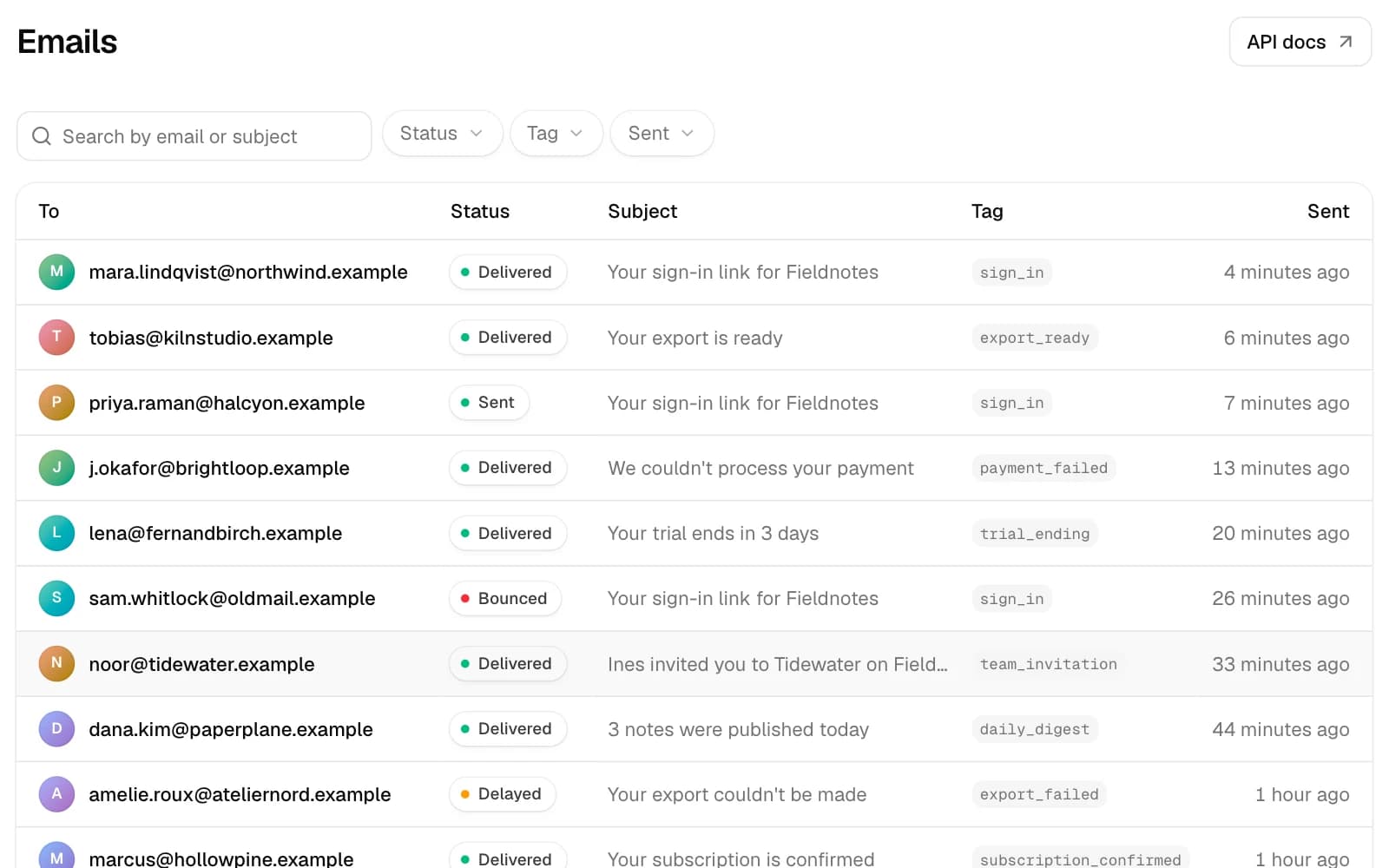
- Queued, then Sent: Postroom took it and handed it on.
- Delivered: the recipient's mail server accepted it.
- Delayed: their server asked to try again later. It's retried without you.
- Bounced: their server refused it.
- Complained: the recipient marked it as spam.
- Failed: sending failed or was interrupted, for instance because the domain stopped being verified.
- Suppressed: it wasn't sent, because the address bounced or complained before.
Open an email to see each step with its time and what the recipient's server answered, like the reason for a bounce, and the webhooks that told your app.
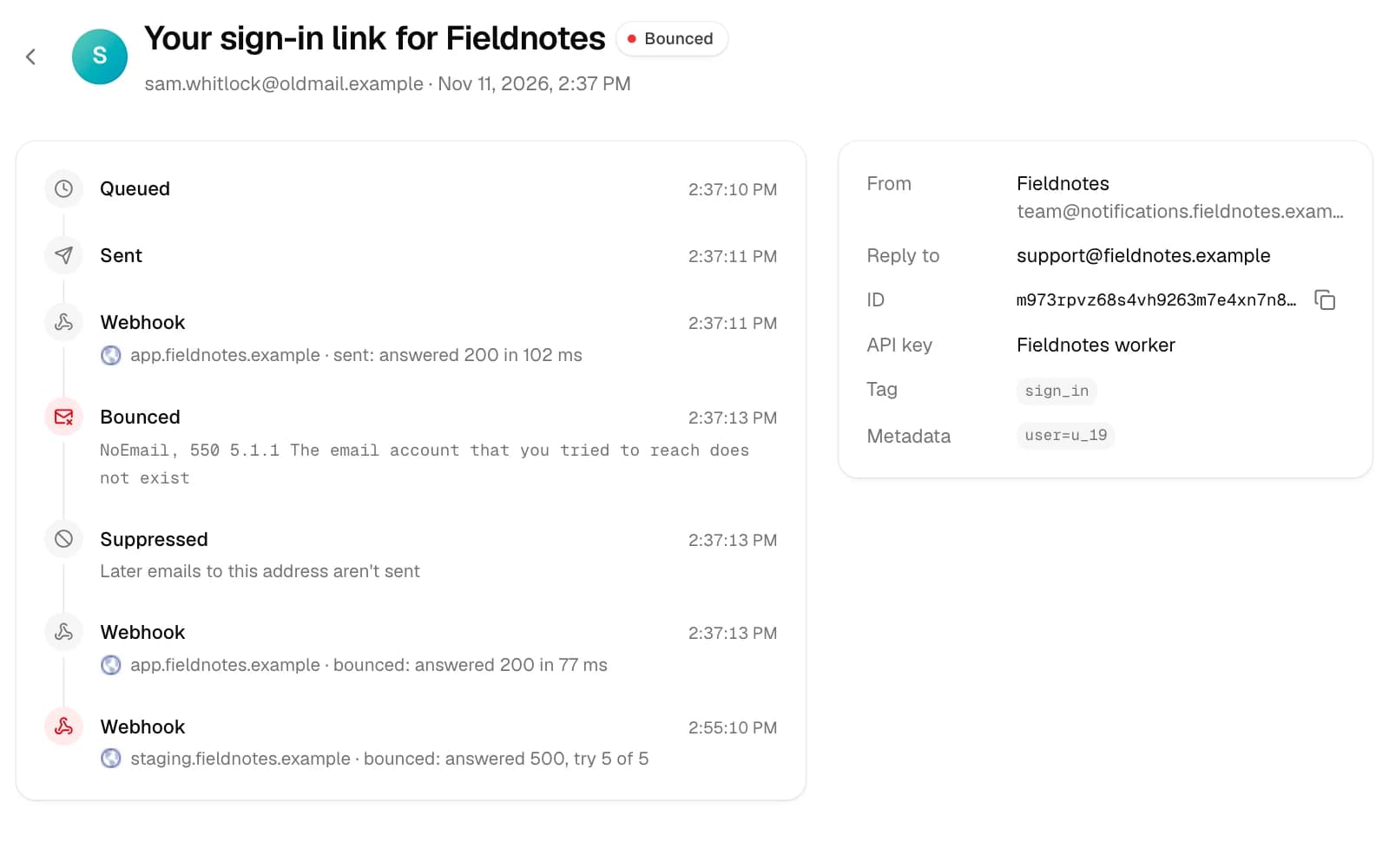
The log keeps an email 90 days.
Bounces and complaints
An address that doesn't exist, or whose owner marked an email as spam, is never emailed again by your account, from your newsletters either. The next email to it isn't sent and answers Suppressed. Mail servers judge senders by how often this happens, so this protects every email you send. Bounces, complaints and pauses
Webhooks
A webhook tells your app what happened to an email after it was sent. Add your endpoint's URL on the Webhooks page and pick the events it gets. An account has up to 5 endpoints.
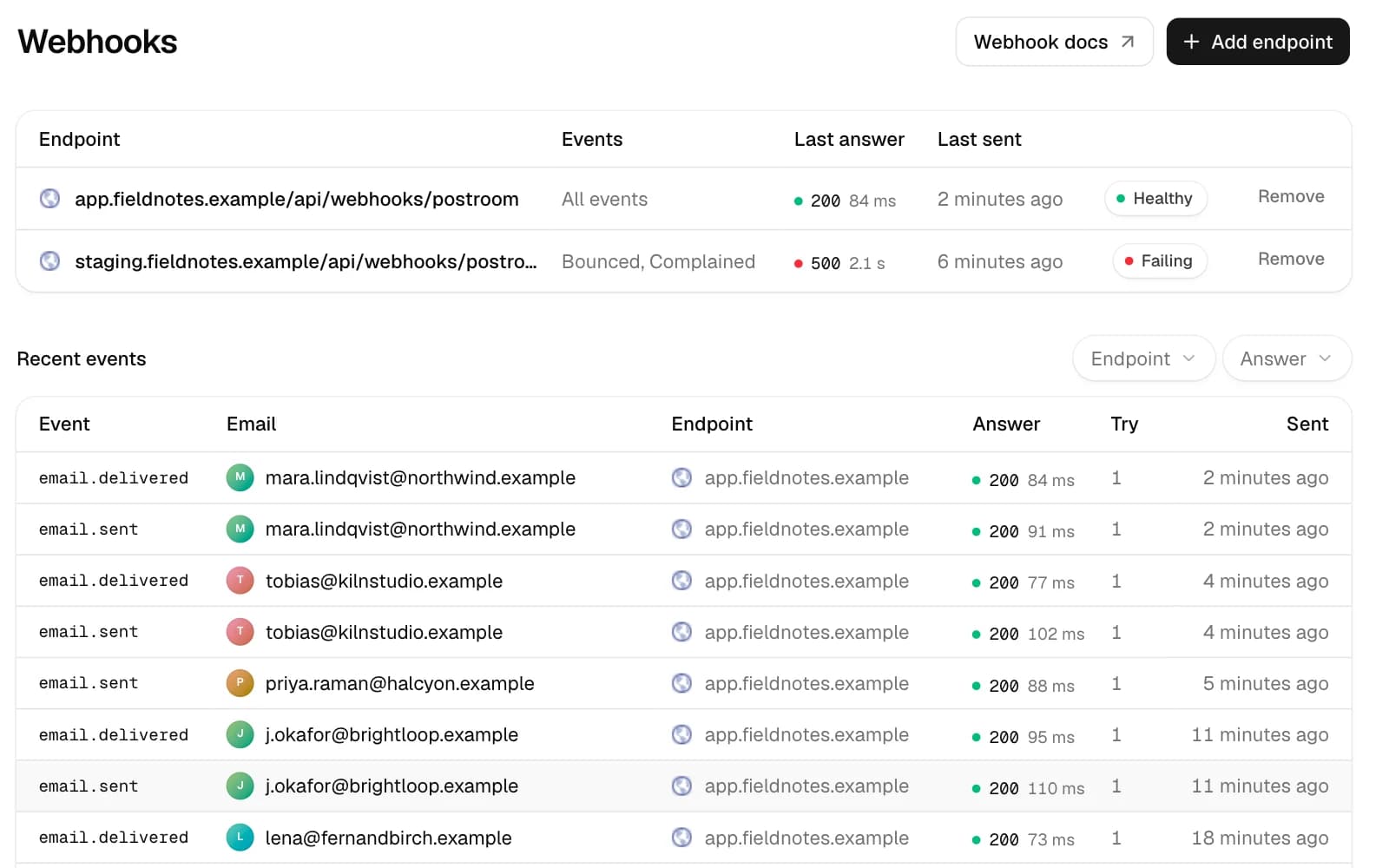
Each event is one POST with JSON: what happened, when, and the email as it is then.
{
  "type": "email.bounced",
  "createdAt": "2026-11-11T13:40:04.000Z",
  "data": {
    "id": "k57f2q9x8m3n4b6v1c0d2e4f6g8h0j2k",
    "to": "sam@example.org",
    "from": "Acme <team@notifications.example.com>",
    "subject": "Your sign-in link",
    "tag": "sign_in",
    "metadata": { "user": "u_1042" },
    "status": "bounced",
    "response": "NoEmail, 550 5.1.1 The email account that you tried to reach does not exist",
    "bounceType": "hard"
  }
}
Requests are signed the way the Standard Webhooks spec says, so its libraries check them. Adding an endpoint shows its signing secret once. Check the signature before you trust a request: anyone can post to your URL.
import { Webhook } from "standardwebhooks";

const webhook = new Webhook(process.env.POSTROOM_WEBHOOK_SECRET);

export async function POST(request) {
  const body = await request.text();
  let event;
  try {
    event = webhook.verify(body, Object.fromEntries(request.headers));
  } catch {
    return new Response("Bad signature", { status: 400 });
  }
  if (event.type === "email.bounced") await markUndeliverable(event.data.to);
  return new Response(null, { status: 204 });
}
Answer with a 2xx status within 10 seconds. Otherwise the event is tried again, up to 5 times over about three hours, each try with the same webhook-id, so your app can skip one it already handled. When every try fails, the endpoint shows as failing and you get a notification.